> ## Documentation Index
> Fetch the complete documentation index at: https://docs.sympana.com/llms.txt
> Use this file to discover all available pages before exploring further.
# How to Connect Sympana to Vapi (Vapi)
> How to connect Sympana Connector to Vapi and create your first connection.
Use this guide to connect Sympana Connector to Vapi inside GoHighLevel.
Before you start, make sure you have:
* Sympana Connector installed in GoHighLevel
* access to your Vapi API key
* a phone number connected to Vapi
* a calendar created in GoHighLevel
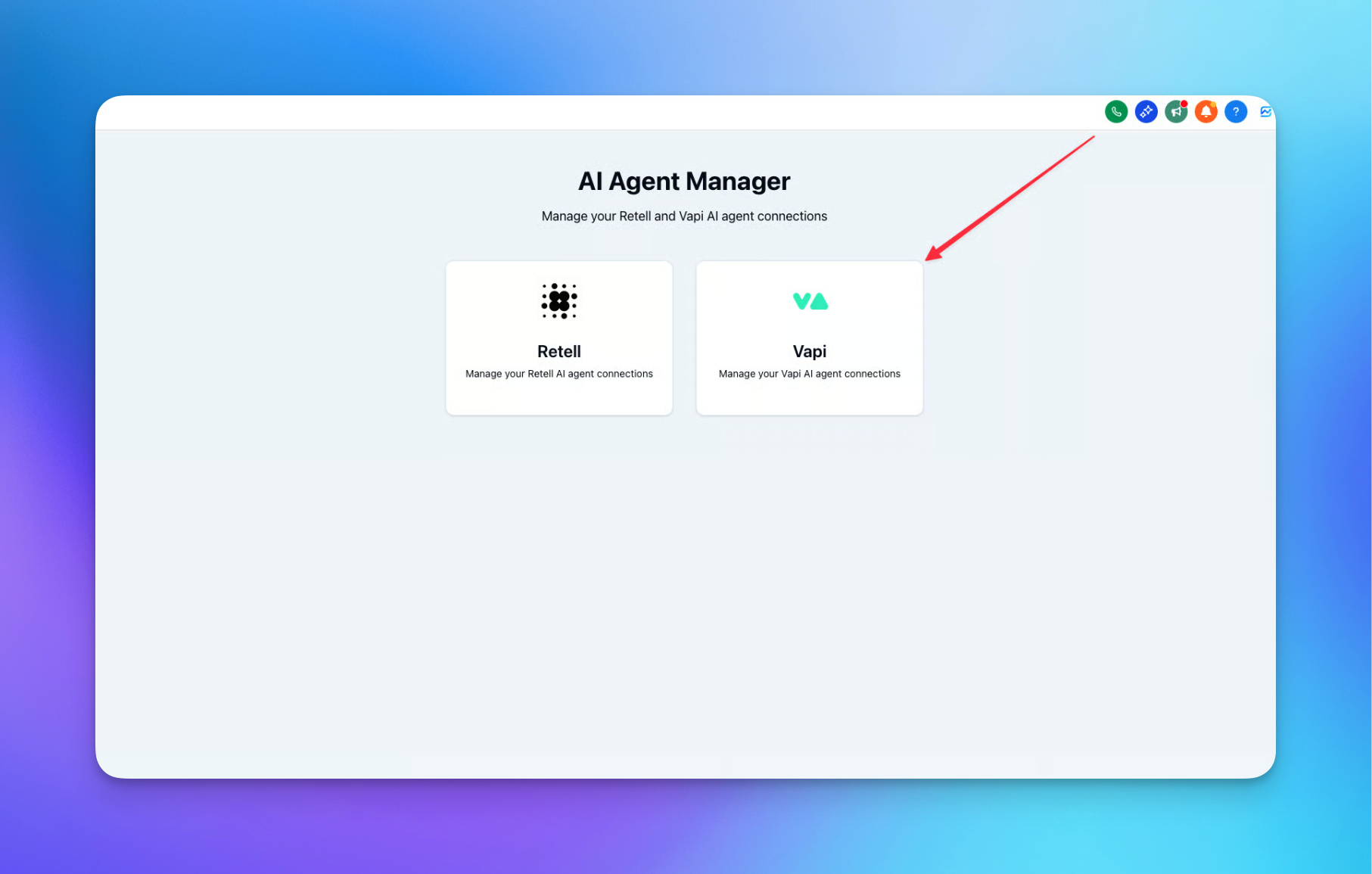
## Step 1. Open the Vapi app
After installing Sympana Connector in your GoHighLevel account, click on the Vapi app.
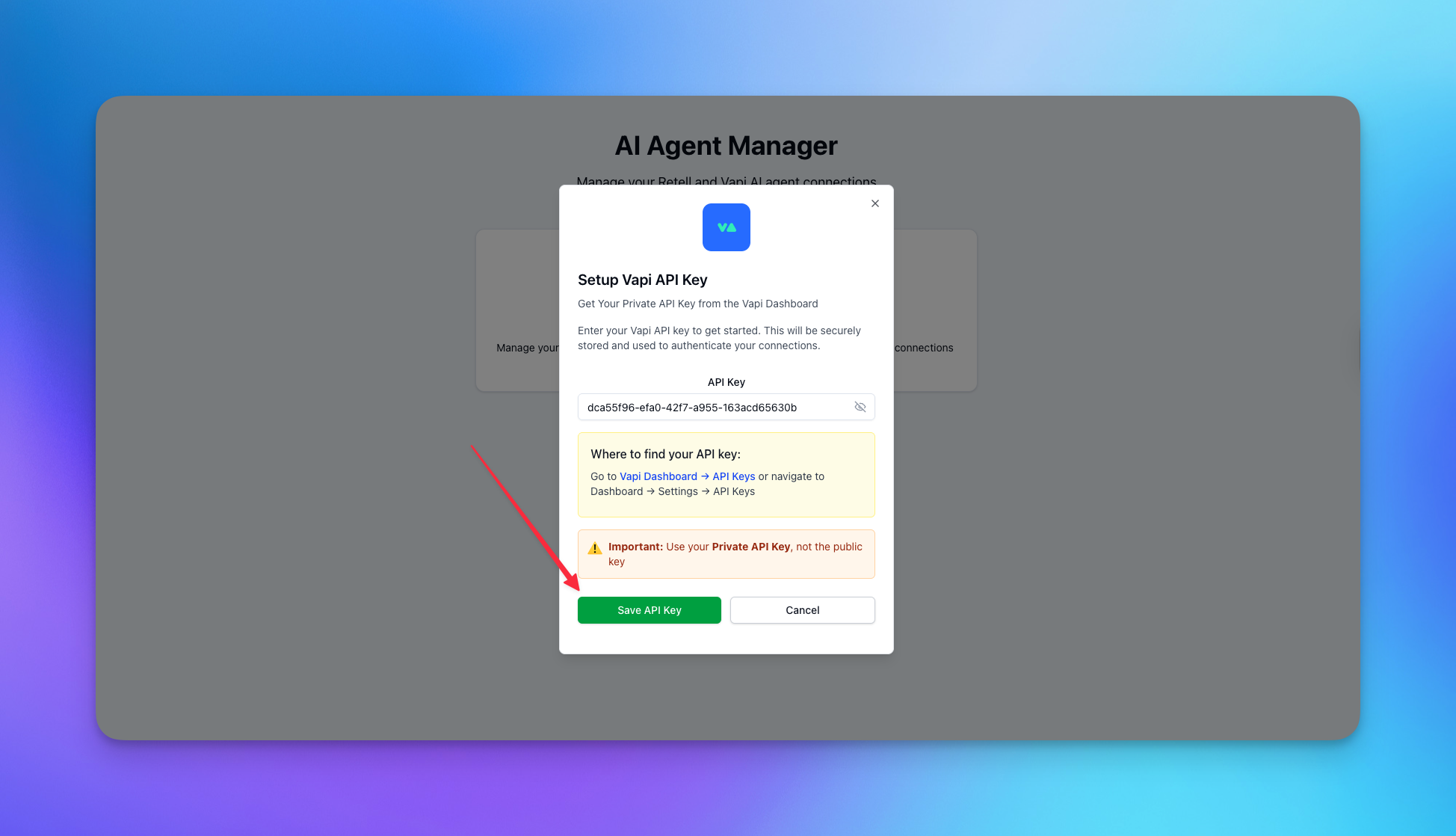
 ## Step 2. Open the API key prompt
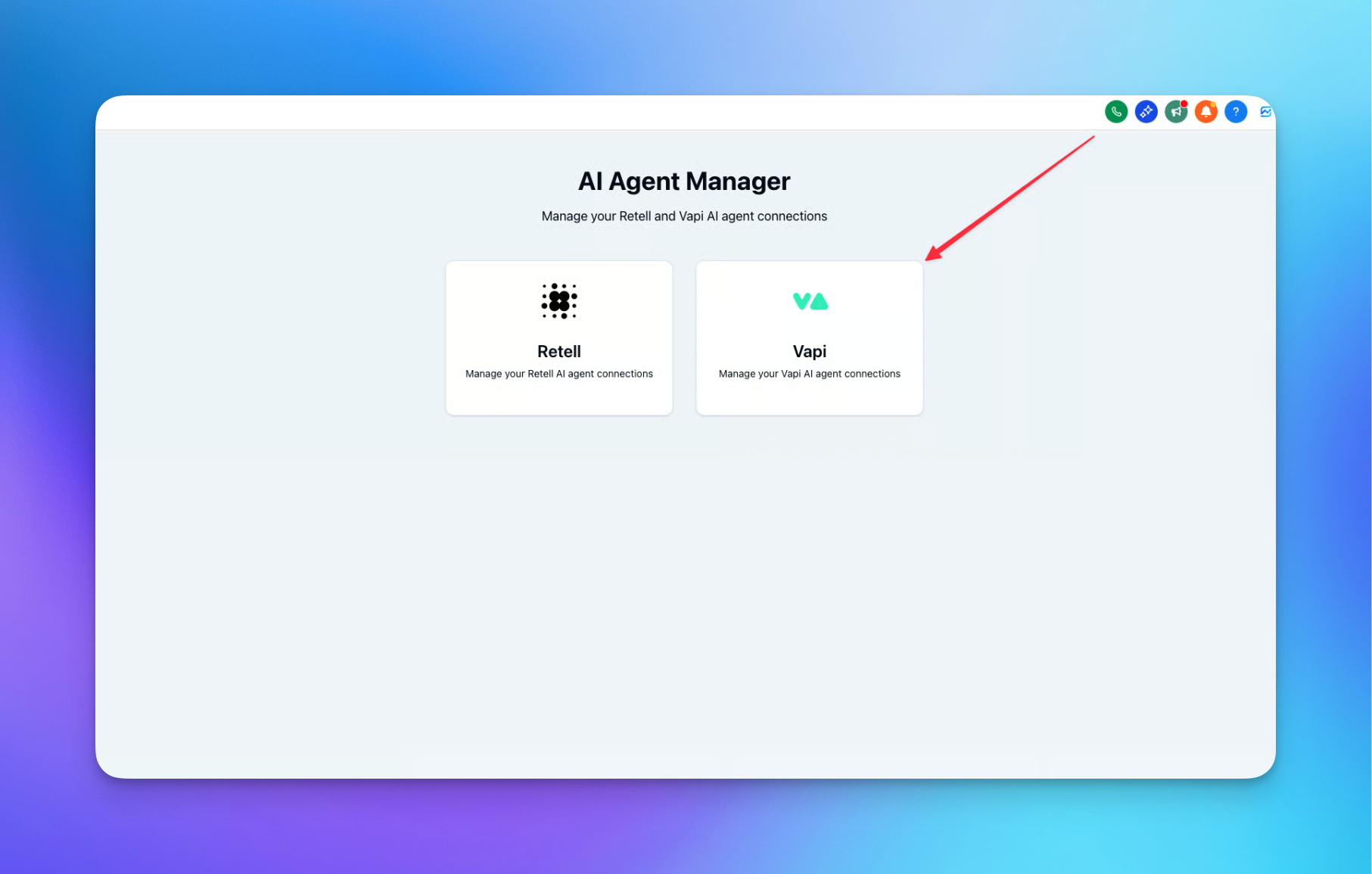
A pop-up appears asking you to get your API key from Vapi.
## Step 2. Open the API key prompt
A pop-up appears asking you to get your API key from Vapi.
 ## Step 3. Go to the Vapi dashboard
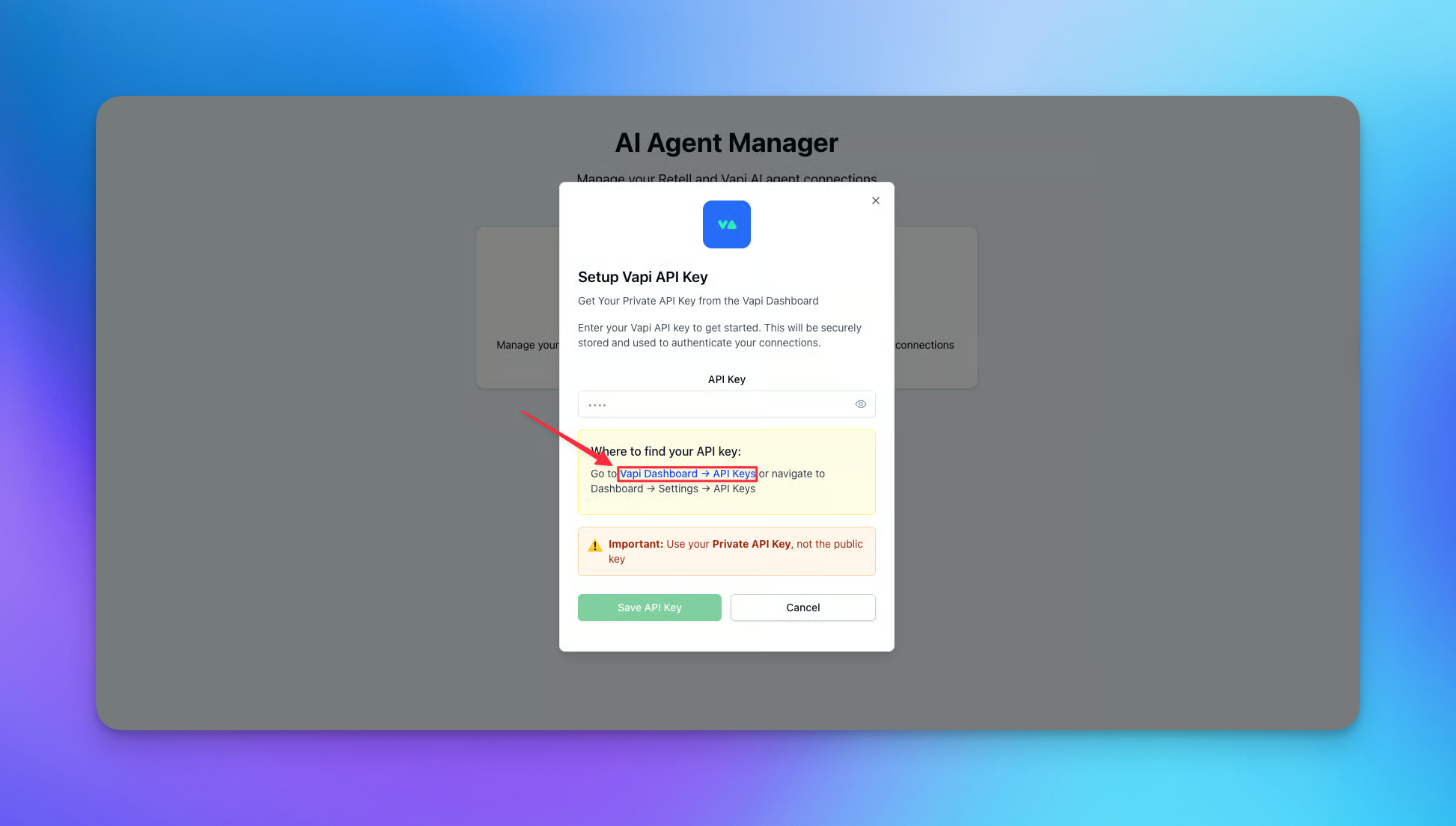
Click the quick link labeled **Vapi Dashboard → API Key**.
## Step 3. Go to the Vapi dashboard
Click the quick link labeled **Vapi Dashboard → API Key**.
 ## Step 4. Copy your Vapi API key
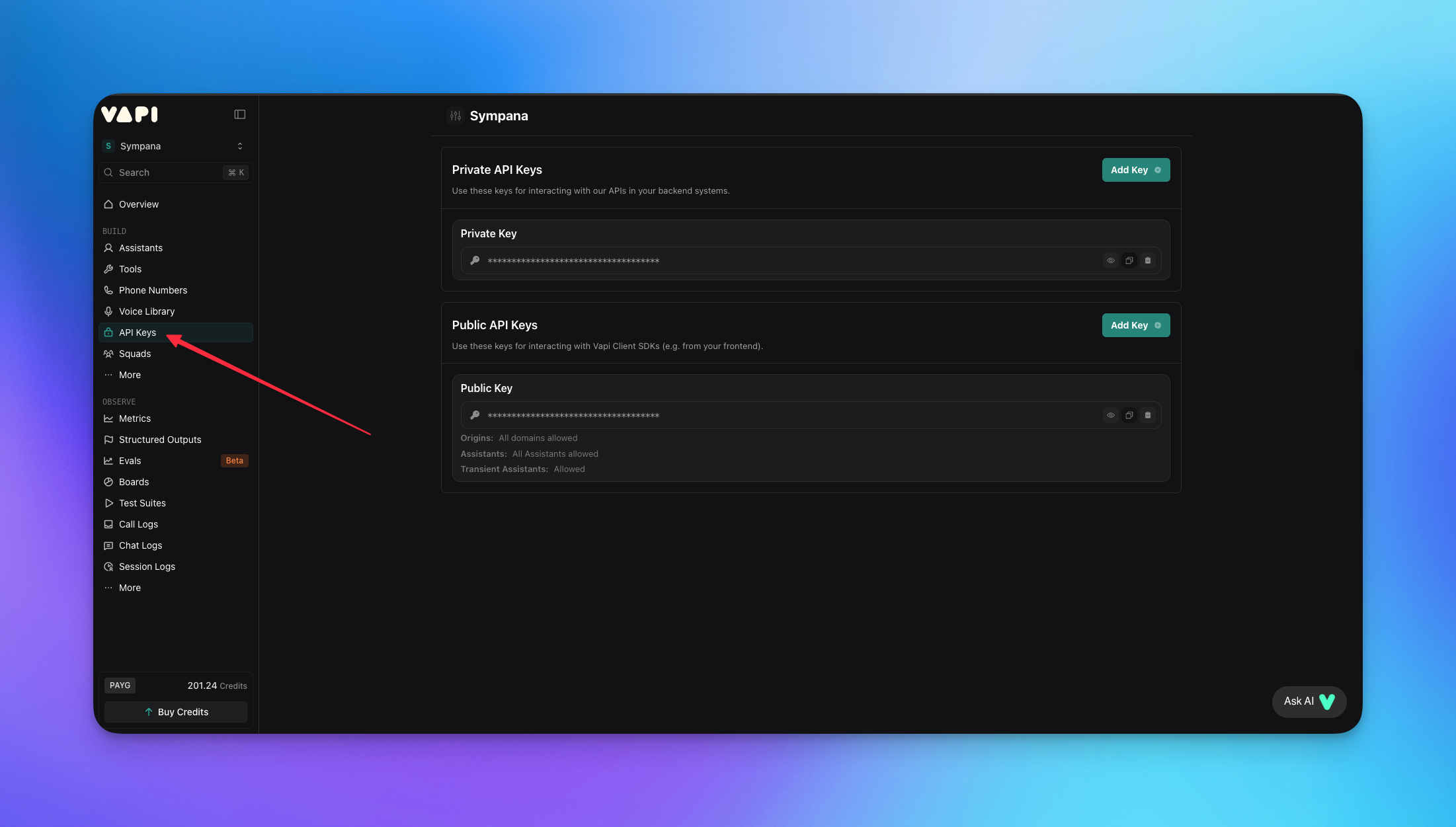
Once you click the link, you will land on the API key section in Vapi.
## Step 4. Copy your Vapi API key
Once you click the link, you will land on the API key section in Vapi.
 ## Step 5. Paste the API key into Sympana Connector
Create a new API key or copy an existing one. Then return to GoHighLevel, open the Sympana Connector app, and paste the key into the API key field.
## Step 5. Paste the API key into Sympana Connector
Create a new API key or copy an existing one. Then return to GoHighLevel, open the Sympana Connector app, and paste the key into the API key field.
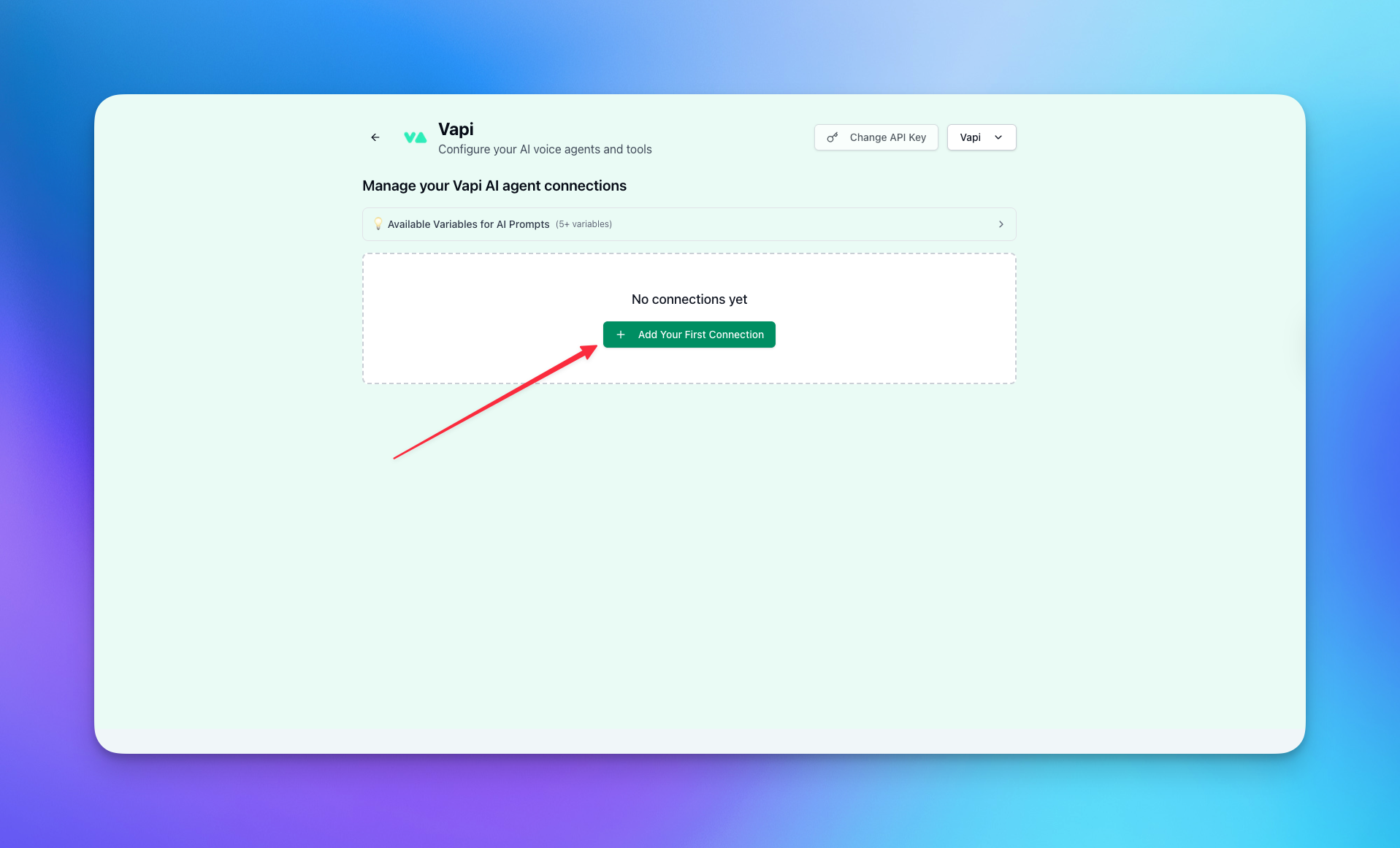
 ## Step 6. Add your first connection
Once the account is connected, click **Add Your First Connection**.
Before you do, make sure:
* you have a phone number connected to Vapi
* you have a calendar created in GoHighLevel
* your calendar does not require a form before booking
## Step 6. Add your first connection
Once the account is connected, click **Add Your First Connection**.
Before you do, make sure:
* you have a phone number connected to Vapi
* you have a calendar created in GoHighLevel
* your calendar does not require a form before booking
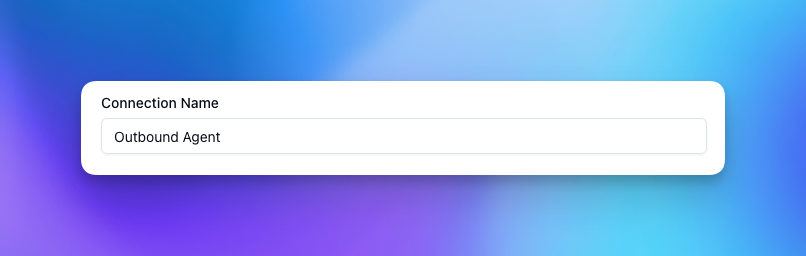
 ## Step 7. Name the connection
Create your connection name. Most users use the name of the AI agent they are connecting.
## Step 7. Name the connection
Create your connection name. Most users use the name of the AI agent they are connecting.
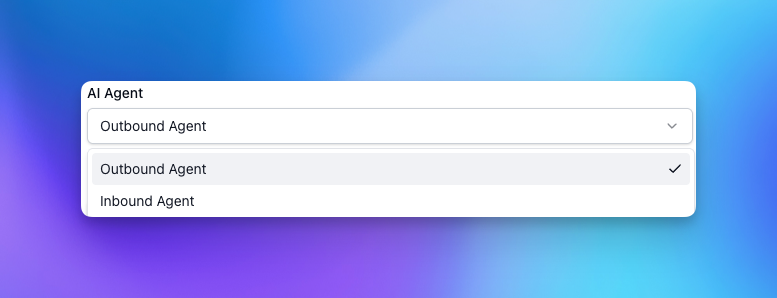
 ## Step 8. Select the Vapi agent
Choose which Vapi agent you want to connect.
## Step 8. Select the Vapi agent
Choose which Vapi agent you want to connect.
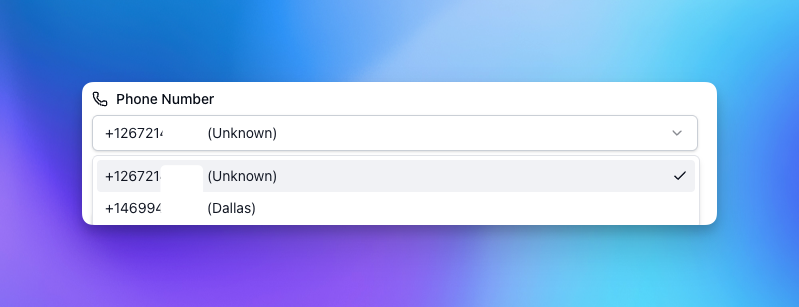
 ## Step 9. Select the phone number
Choose the phone number you want to use for the connection.
## Step 9. Select the phone number
Choose the phone number you want to use for the connection.
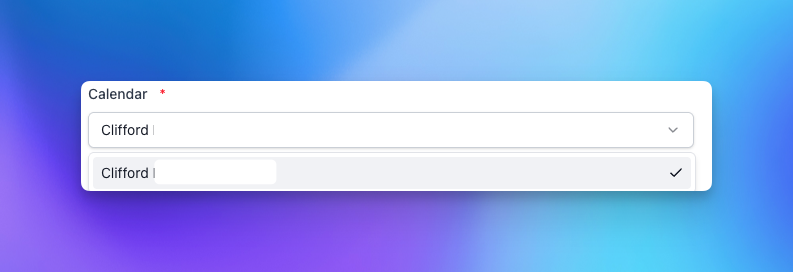
 ## Step 10. Select the calendar
Choose the GoHighLevel calendar you want to connect.
## Step 10. Select the calendar
Choose the GoHighLevel calendar you want to connect.
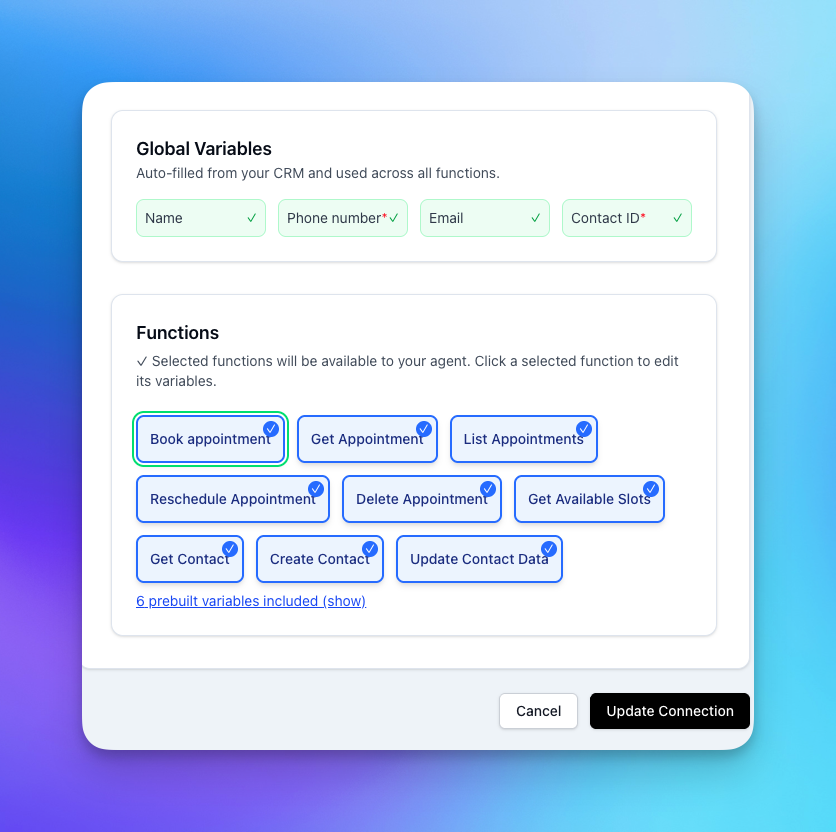
 ## Step 11. Select functions and variables
Choose the functions and global variables you want to use. Some global variables, such as phone number and contact ID, are required. Then click **Create Connection**.
## Step 11. Select functions and variables
Choose the functions and global variables you want to use. Some global variables, such as phone number and contact ID, are required. Then click **Create Connection**.
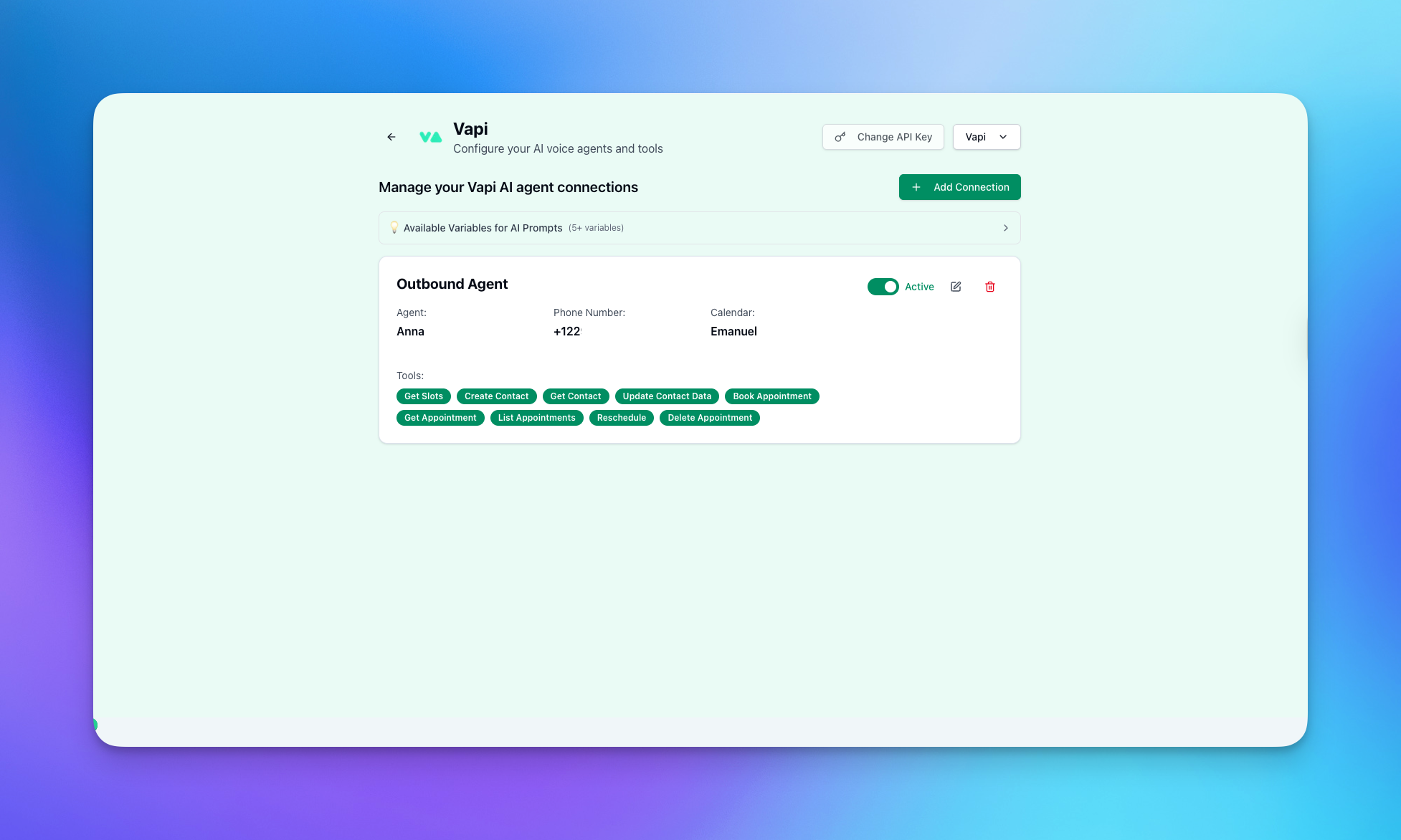
 ## Step 12. Verify the connection
Your first Vapi connection should now be active.
## Step 12. Verify the connection
Your first Vapi connection should now be active.
 If something does not work during setup, [join the Sympana Discord server](https://discord.gg/QXk7ddhmZQ) to get the fastest support from someone on the Sympana team.